Wedding planning runs on deadlines: venue deposits, save-the-dates, RSVPs, final numbers. A countdown you can see while you work turns “sometime next year” into a concrete number, and makes every milestone feel real. Here’s how to set one up on a Mac.
The fastest way: a shareable web countdown
Open the free wedding countdown, enter your date, and add your names. It shows the days, weeks, and exact time left, plus a table of common planning milestones by time remaining.
Click Share this countdown to get a link with your date and names built in. Send it to your partner, wedding party, or parents, so everyone watches the same countdown. On your Mac, you can keep that link as a pinned tab, or in Safari on macOS Sonoma and later, open it and choose File › Add to Dock to give it its own window.
Add planning milestones to Calendar
A countdown tells you how long is left; Calendar reminds you what’s due. Work backward from your date and add a few all-day events with alerts, for example:
- Save-the-dates sent: commonly 6 to 8 months before (earlier for a destination wedding)
- Invitations sent: commonly 6 to 8 weeks before
- RSVP deadline: commonly 3 to 4 weeks before
- Final numbers to the caterer and venue: check your contracts for the exact date
If you plan together, create a shared calendar in iCloud so both of you get the alerts.
A wedding countdown widget
On macOS Sonoma and later, right-click the desktop and choose Edit Widgets. Apple doesn’t include a countdown widget, but countdown apps from the Mac App Store can add one, and if you use a countdown widget on your iPhone, turn on Use iPhone widgets in System Settings › Desktop & Dock to show it on your Mac. Widgets are easy to glance at, as long as your desktop isn’t covered by windows.
A wedding countdown in your Mac’s notch
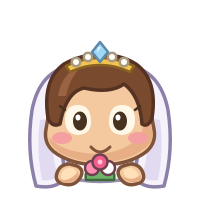
Notchiko, which we make, keeps your countdown by the MacBook’s notch, where it’s visible over any app. Each countdown has a little character, and the free Bride Chiko is made for weddings.
- Download Notchiko and open it.
- Hover over the notch and click +, or choose Settings… from the menu bar icon and open Countdowns.
- Name it, for example Our Wedding, and pick the date.
- Choose the Bride Chiko (Notchiko suggests the Heart for “wedding”; either works).
- Leave Repeats every year off, and click Add.
Hover over the notch any time to see the days left. With Notchiko Lifetime (a one-time $4.99), the Groom and Ring Chikos are available too, and you can keep up to 25 countdowns: the wedding, the honeymoon, the bachelor and bachelorette parties. The free version includes Christmas and one custom countdown.
After the wedding, change the countdown to your anniversary and turn on Repeats every year.
Notchiko requires macOS 14 Sonoma or later and shows as a floating pill on Macs without a notch.
Which to use?
- To share with others: the web countdown link.
- To remember deadlines: Calendar events with alerts.
- To see the date all day while you work: a notch or menu bar app.
Many couples use more than one. Once the day has come and gone, keep counting with the anniversary countdown.